How to Make Clips on Twitch - Best Tools and Chatbot Commands
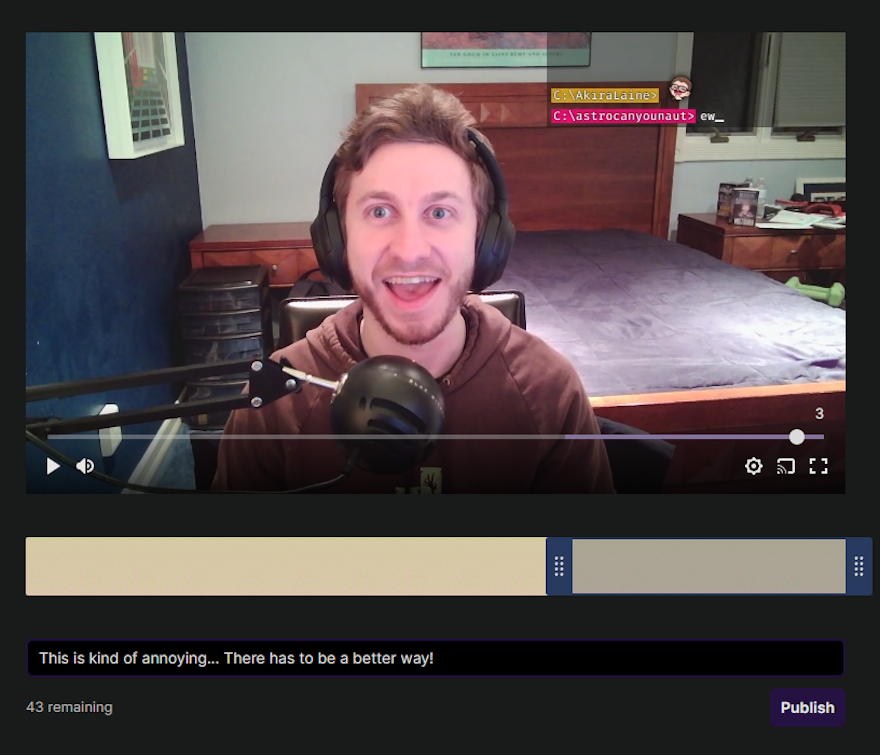
Clips help grow your Twitch channel. But creating clips, editing them, and uploading them to TikTok or YouTube Shorts takes time. Twitch has a native clipping tool, but there are faster methods and tools that automate the entire workflow.
Make Twitch Clips with Alt+X
To create a clip on Twitch, press Alt+X during a live stream. This opens the Twitch clip editor.
The editor shows the last 60 seconds of the stream. Select the segment you want to clip, add a title, and publish. Twitch saves the clip to your channel. You can find it later in your Creator Dashboard clips page.
This method works for any stream. Viewers and moderators can also press Alt+X to clip your stream.
Use a Clip Command with Nightbot or StreamElements
Chat commands let you create clips without opening the editor. When you or a viewer types !clip in chat, your chatbot creates a clip of the last 30 seconds.
Nightbot, Fossabot, and StreamElements all support clip commands. For Nightbot, you can set up a clip command that connects to Clipbot without exposing your Twitch access token in chat.
Chat commands are faster than Alt+X because you do not leave the stream or open the editor. Clips are created automatically in the background.
Create Clips with Stream Deck Buttons
Stream Deck is a physical device with programmable buttons. It has a Create Clip action that clips the last 30 seconds of your stream when you press the button.
You do not need to type a chat command or open an editor. Stream Deck creates the clip in the background. The clip appears in your Twitch Creator Dashboard.
Stream Deck also has a mobile app for iOS and Android. You do not need the physical hardware. Download it from Elgato's website.
Automate Clipping and Uploads with Clipbot
If you want to create clips and upload them to TikTok or YouTube Shorts automatically, use Clipbot.
Clipbot lets you set a keyboard hotkey to clip the last 30 seconds of your stream. Once the clip is created, Clipbot:
- Detects the new clip
- Crops it vertically for mobile screens
- Adds captions
- Uploads it to YouTube Shorts or TikTok overnight
You can approve clips before they are published, or set automatic approval rules. Clipbot removes the manual editing step. You do not need to download clips, open a video editor, or manually upload to social platforms.
Clipbot also works with Nightbot clip commands. Connect Clipbot to Nightbot so viewers can create clips with !clip, and Clipbot handles the rest.
Related Guides
Once you've created clips, learn how to upload Twitch clips to YouTube Shorts instead of TikTok. YouTube Shorts does not penalize links to Twitch in your bio. You can also learn how to edit Twitch clips for TikTok and YouTube Shorts with vertical cropping and captions.
If you want to compare tools, check out Clipbot vs Combo for automation versus editing power, or Clipbot vs Powder for another comparison. For setting up a Nightbot command, see the Nightbot clip command setup guide.
Frequently Asked Questions
How do I make clips on Twitch?
Press Alt+X during a live stream to open the Twitch clip editor. Select the last 60 seconds you want to clip, add a title, and publish. You can also use chat commands like !clip with Nightbot or StreamElements, Stream Deck buttons, or Clipbot's hotkey for faster clipping.
What is the Twitch clip command for Nightbot and StreamElements?
Set up a !clip command in Nightbot or StreamElements to capture the last 30 seconds of your stream when someone types !clip in chat. Nightbot can connect to Clipbot's API to create clips without exposing your Twitch token. Chat commands are faster than Alt+X because you do not leave the stream.
Can I use Stream Deck to make Twitch clips?
Yes. Stream Deck has a Create Clip action that captures the last 30 seconds of your stream when you press the button. You do not need to type a chat command. Stream Deck is available as a physical device or a mobile app for iOS and Android. The mobile app is free.
What is the difference between Clipbot and manual clip tools?
Manual clip tools like Twitch's Alt+X or chat commands create clips but require you to download, edit, and upload them to TikTok or YouTube Shorts. Clipbot creates clips and automatically crops, processes, and uploads them to YouTube Shorts overnight. It removes the manual editing step. Compare Clipbot vs Combo or Clipbot vs Powder for more tool comparisons.
How do I automate Twitch clip uploads to YouTube Shorts and TikTok?
Use Clipbot to automate clip uploads. After you create clips with Clipbot's hotkey or connect it to a Nightbot command, Clipbot crops clips vertically, adds captions, and uploads them to YouTube Shorts or TikTok overnight. You can approve clips before publishing or set automatic approval rules.
Can I create Twitch clips without a Stream Deck?
Yes. You can use Alt+X on Twitch, set up a chat command like !clip with Nightbot or StreamElements, or use Clipbot's keyboard hotkey. Stream Deck is optional. The mobile Stream Deck app is free if you want a button-based solution without buying the hardware.