How to Upload Twitch Clips to YouTube Shorts (Better Than TikTok)
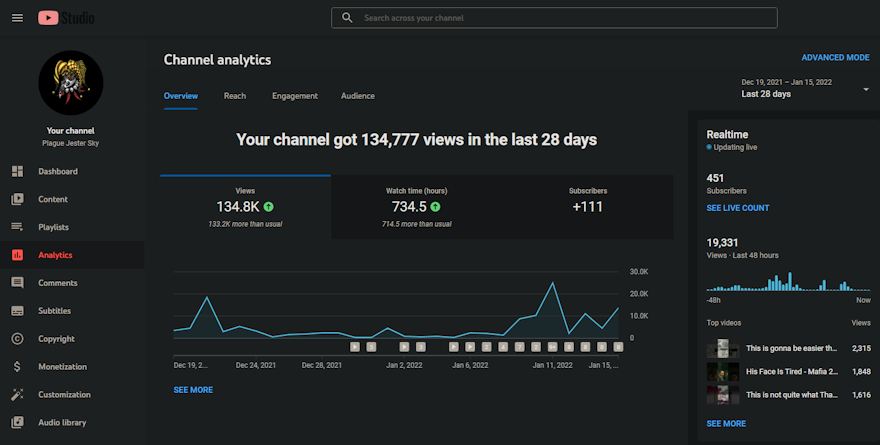
You're a Twitch streamer. You've decided to grow your stream by reusing your best clips on short-form video platforms.
You set up a clip button and make a ton of cool clips. You crop them vertically using a tool, upload them, and wait.
After a few days, you have views. But engagement is low—few likes, no comments. You try again with another clip. Same result.
Why aren't your best clips growing your stream?
Why TikTok is Harder for Twitch Streamers
TikTok's algorithm has historically been unfriendly to content creators who direct viewers to other platforms. If your bio links to Twitch, or your videos mention your stream, TikTok may deprioritize your content.
Here's what many streamers have observed:
- TikTok penalizes accounts that link to Twitch in their bio
- TikTok deprioritizes videos that direct viewers to other platforms
- TikTok suppresses videos with comments linking to external sites
This doesn't mean you can't grow on TikTok. But it means you'll work harder to reach the same audience compared to platforms that don't penalize cross-promotion.
Upload Twitch Clips to YouTube Shorts
YouTube Shorts is YouTube's short-form video platform. It works like TikTok, but lives inside YouTube. To upload a YouTube Short, upload a vertical video (9:16 aspect ratio) under 60 seconds to YouTube. It will automatically appear as a Short.
YouTube Shorts does not penalize links to Twitch. You can include your Twitch channel in your YouTube description and bio without algorithmic suppression. Your Shorts also build your YouTube channel, adding subscriber value over time.
Automate Twitch Clips to YouTube Shorts with Clipbot
If you use a tool like Clipbot, you can automate the entire workflow. Clipbot crops your clips vertically, processes them overnight, and uploads them to YouTube Shorts automatically. You don't need to manually edit clips with tools like Streamladder or Combo.
Clipbot handles:
- Vertical cropping for mobile screens
- Auto-captions for better watch time
- Overnight uploads to YouTube Shorts
- Custom titles, tags, and descriptions
You can also set up a Nightbot clip command to capture clips during your stream, then let Clipbot handle the rest.
Related Guides
Looking for more ways to work with Twitch clips? Learn how to make clips on Twitch with chat commands and Stream Deck buttons, or set up a Nightbot clip command to capture moments during your stream.
Once you've created clips, discover how to edit Twitch clips for YouTube Shorts with vertical cropping and captions. If you're comparing tools, check out Clipbot vs Combo for automation versus editing power, or Clipbot vs Streamladder for another comparison.
Frequently Asked Questions
How do I upload Twitch clips to YouTube Shorts?
Upload a vertical video (9:16 aspect ratio) under 60 seconds to YouTube. It will automatically appear as a YouTube Short. You can crop and upload clips manually, or use Clipbot to automate vertical cropping, captions, and uploads to YouTube Shorts overnight. Twitch clips are horizontal by default, so you must crop them to fit mobile screens before uploading.
Why is YouTube Shorts better than TikTok for Twitch streamers?
YouTube Shorts does not penalize accounts that link to Twitch in their bio or videos. TikTok's algorithm has historically deprioritized content that directs viewers to other platforms. YouTube Shorts also connects directly to your existing YouTube channel, building long-term subscriber value. This makes YouTube a better platform for streamers who want to grow their Twitch audience through short-form content.
Can Clipbot automatically upload Twitch clips to YouTube Shorts?
Yes. Clipbot crops your approved Twitch clips to vertical format, processes them overnight, and uploads them to YouTube Shorts automatically. You can set custom titles, descriptions, tags, and hashtags for each clip or use default settings for all uploads. Clipbot also handles captions and aspect ratio conversion, so you don't need manual editing tools.
Do I need to edit Twitch clips before uploading to YouTube Shorts?
Twitch clips are horizontal (16:9). YouTube Shorts requires vertical video (9:16). You must crop the clip to fit mobile screens. Clipbot handles vertical cropping and captions automatically. Manual editing requires a video editor like DaVinci Resolve or similar tools. Learn more about editing Twitch clips for YouTube Shorts.
How do I make Twitch clips for YouTube Shorts?
Create clips during your stream with Alt+X on Twitch, a Nightbot clip command, Stream Deck buttons, or Clipbot's hotkey. Once clips are created, crop them vertically and upload to YouTube. Clipbot automates the entire process from clipping to upload, including vertical cropping, captions, and overnight publishing.
What is the best tool to upload Twitch clips to YouTube Shorts?
Clipbot is the best tool for automated uploads. It handles vertical cropping, captions, and overnight uploads to YouTube Shorts and TikTok. For manual editing with more creative control, Combo offers a powerful video editor. For basic edits, Streamladder is another option. Choose based on whether you want automation or editing power.
Conclusion
YouTube Shorts is a better platform than TikTok for Twitch streamers who want to grow their audience through short-form content. YouTube does not penalize links to Twitch, and your Shorts build long-term channel value.
Ready to automate your Twitch clip uploads? Try Clipbot for free.