StreamLadder Alternative: Automate Twitch Clips to TikTok and YouTube Shorts
If you're looking to edit Twitch clips and upload to TikTok or YouTube Shorts, you've probably come across StreamLadder and Clipbot
StreamLadder was one of the first tools to make it easy to convert Twitch clips into vertical videos for TikTok. It helped streamers share their clips on mobile platforms and grow their audience beyond Twitch.
If you haven't made a TikTok, Reel, or YouTube Short from your clips yet, StreamLadder is a good tool to get started. It's straightforward and offers enough options to make solid content for mobile platforms.
StreamLadder has premade but customizable crops to fit your gameplay and camera into vertical videos. There's no download or setup required. You can get your first clip ready in under two minutes.
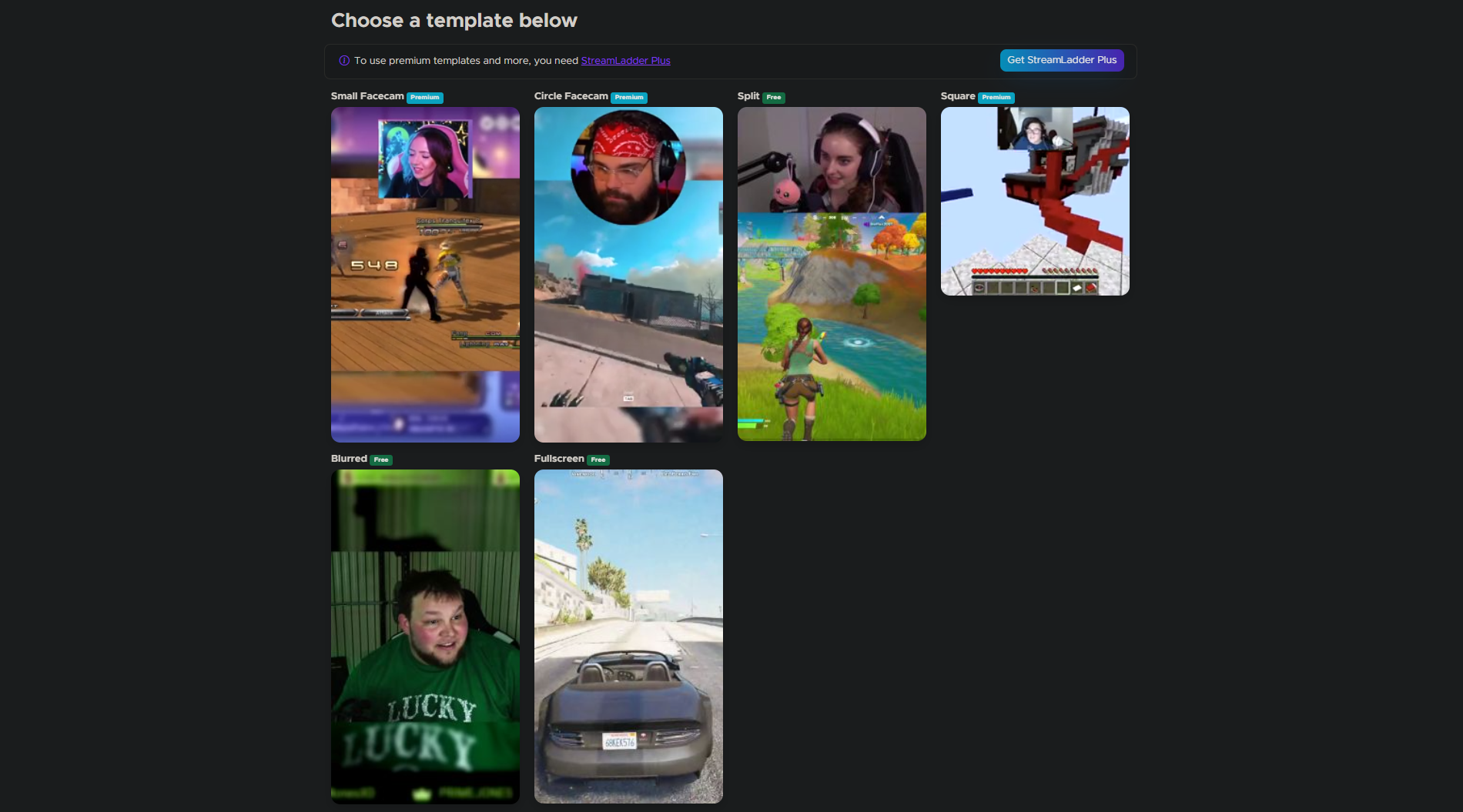
If you're uploading to TikTok, StreamLadder offers a "Send to TikTok" option that sends the video to the TikTok app where you can add sounds or final edits before publishing.
StreamLadder is solid. Is there any reason to use something else?
One word: Automation.
If you want to visit StreamLadder.com, select a clip, pick a template, download it or send it to TikTok, add final edits, title it, add hashtags, and publish it every single time, StreamLadder is a perfect tool for you. (If you want more editing power, check out Combo.)
But if you find yourself doing the same edits to most of your clips—same camera position, same crop—Clipbot might be a better choice.
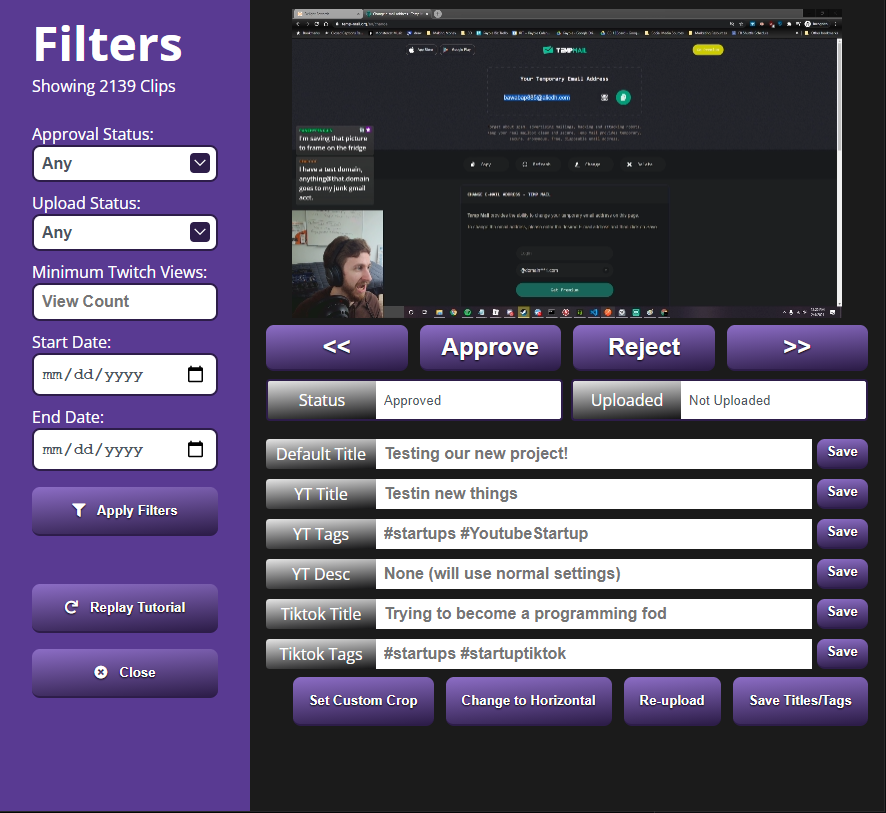
Instead of manually editing and preparing every clip, Clipbot automates the workflow. Set it up once with your preferred camera and screen crop, connect TikTok and YouTube, and Clipbot handles the repetitive work.
Clipbot pulls your Twitch clips automatically, converts them to vertical videos, uploads them to YouTube Shorts, and publishes them to TikTok overnight.
You can set custom titles, hashtags, descriptions, and tags inside Clipbot. Clipbot applies your defaults automatically, then publishes each video.
It's up to you to decide how you want to post your content, and how much control you want
If you only want to post a few clips and want to edit them individually, StreamLadder is a solid tool that works well.
If you want to post more content and want the editing and uploading handled for you, Clipbot might be a better choice.
Related Guides
Looking for more ways to work with Twitch clips? Learn how to make clips on Twitch with chat commands and Stream Deck buttons, or set up a Nightbot clip command to capture moments during your stream.
Once you've created clips, discover how to edit Twitch clips for YouTube Shorts with vertical cropping and captions. If you're comparing tools, check out Clipbot vs Combo for automation versus editing power, or Clipbot vs Powder for another comparison.
Want to learn more about uploading to YouTube Shorts? Read our guide on how to upload Twitch clips to YouTube Shorts.
Frequently Asked Questions
How does StreamLadder work for Twitch clips?
StreamLadder is a web-based tool that lets you convert Twitch clips to vertical videos for TikTok and YouTube Shorts. Upload a clip, choose a crop template, customize the positioning, and download the video or send it to TikTok. No account required. StreamLadder provides manual control over each clip, so you can adjust camera placement and crop settings before exporting.
Can Clipbot replace StreamLadder for Twitch clip automation?
Yes, if you want automation. Clipbot automates the entire workflow: it crops your approved Twitch clips vertically, adds captions, and uploads them to TikTok and YouTube Shorts overnight. StreamLadder requires manual editing for each clip. Choose Clipbot for automation or StreamLadder for manual control. Both tools work with the same Twitch clips, but Clipbot handles the repetitive tasks without requiring you to edit and upload each video individually.
Which is better for editing Twitch clips—StreamLadder or Clipbot?
StreamLadder offers more manual editing control with customizable crop templates and a "Send to TikTok" feature that lets you add final edits in the TikTok app. Clipbot automates simple vertical crops and captions without manual editing for each clip. If you want to edit each clip individually with custom positioning, use StreamLadder. If you prefer automation that handles cropping and uploads overnight, use Clipbot. Learn more about editing Twitch clips for TikTok and YouTube Shorts.
Does Clipbot automatically upload to YouTube Shorts and TikTok?
Yes. Clipbot processes your approved Twitch clips overnight and uploads them to YouTube Shorts and TikTok automatically. You can set custom titles, descriptions, hashtags, and tags for each clip or use default settings that apply to all uploads. StreamLadder requires you to download and upload each video manually. Clipbot also handles YouTube Shorts uploads without requiring manual export and upload steps.
Is StreamLadder free?
Yes. StreamLadder is free to use with no account required. Clipbot offers a 7-day free trial, then requires a paid subscription for automated uploads to TikTok and YouTube Shorts. StreamLadder is better for occasional clip editing when you want full manual control. Clipbot is better for consistent automated uploads when you want to post clips regularly without manual work.
What is the best StreamLadder alternative for automation?
Clipbot is the best StreamLadder alternative if you want automation. Clipbot handles vertical cropping, captions, and overnight uploads to TikTok and YouTube Shorts without manual intervention. For more editing power with manual control, Combo offers a full video editor with game-specific templates. For basic manual edits with no subscription, StreamLadder remains a solid free option. You can also set up Clipbot with a Nightbot command to automatically create clips during your stream.
Conclusion
StreamLadder and Clipbot serve different needs. StreamLadder gives you manual control over each clip with customizable templates. Clipbot automates the workflow from cropping to upload.
Choose StreamLadder if you want to edit a few clips individually with full control. Choose Clipbot if you want to post clips regularly and prefer automation over manual editing.
Read more about Clipbot: Clipbot.tv
Ready to try Clipbot's automated workflow? Get started for free.